 Assertline
Guide
How to record an end-to-end test without writing code
You can turn one click-through of your website into a test that runs again and again, without writing code. Add a recorder to your browser, use your site the way a customer would, say what must be true at the end, and run it whenever the site changes. This guide goes through each step with Assertline, whose recorder and Free plan cost nothing.
What does recording a test mean?
An end-to-end test uses your website the way a person does: it opens pages, clicks, types and looks at what comes back. Written by hand, that is a program someone has to write and keep working. Recorded, it is a list of steps saved while you use the site once.
Each run then repeats those steps in a real browser and reports every one of them: done or not, how long it took, and a picture of the page at that moment. A recording becomes a real test when you also add checks: statements about what must be true, such as "the words Order confirmed are on the page".
What you need
- Chrome, Edge or Brave on a computer. Recording happens in the browser you already use.
- A free Assertline account. No card is needed. The Free plan has 2 editors, 2 projects, unlimited tests and unlimited runs on your own computer.
- The address of your site. It does not have to be public: a test can run in your own browser or on your own computer, and reaches whatever that computer can reach.
- A test account, if the journey signs in. Use one made for testing, not your personal one.
- About five minutes for the first test.
Step 1: add the recorder to your browser
- Open the Assertline Recorder in the Chrome Web Store and press Add to Chrome, then Add extension.
- Press the puzzle icon in the browser's toolbar and pin Assertline Recorder, so it is one click away.
- The recorder opens a welcome page. Create your free account there, or sign in, and press Connect the recorder: one click, no code to copy.
More about what the recorder can and cannot see is on the recorder's page.
Step 2: record the journey
- Open your website. Click the Assertline Recorder icon, choose your project and press Start.
- Use your site as a customer would: sign in, search, add something to the cart, pay. Clicks, typing, key presses, hovers, file uploads, dialogs and page changes become steps as you go.
- Press Stop when the journey is done. The test is saved to your workspace straight away.
Only the tab you started on is recorded, and only until you press Stop. When a step opens a new tab, the recorder follows you into it and back.
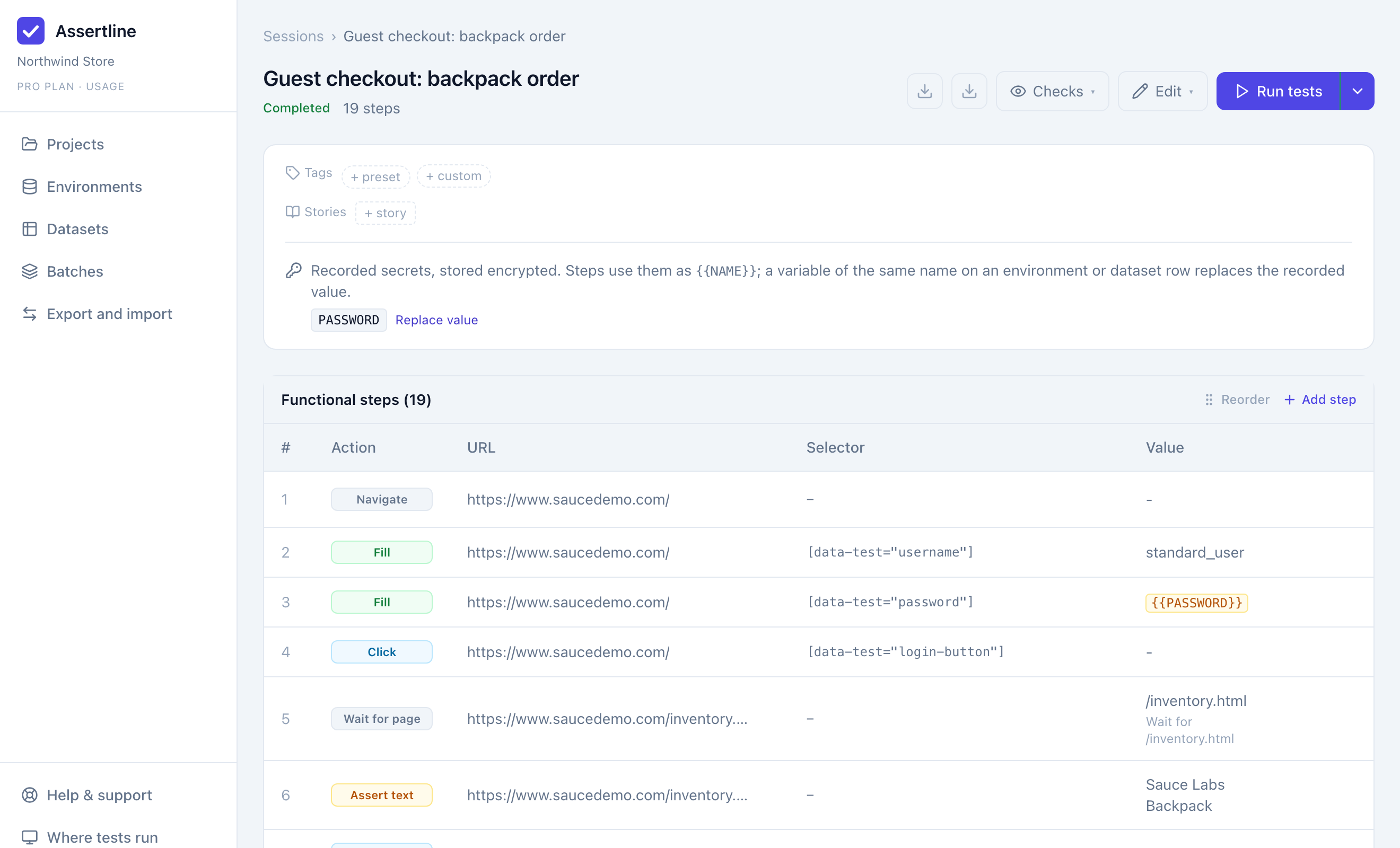
{{PASSWORD}}.What happens to a password you type
A field the recorder recognises as a password, a card number, a card security code or a one-time code is recorded as a named placeholder such as {{PASSWORD}}. What you typed is stored separately, encrypted, and is never shown again. A private value typed into an ordinary field is recorded as you typed it; you can turn it into a variable afterwards on the test's page.
Three habits that make a recording replay well
- One journey for each test. "A guest buys one item" is a good test. A tour of the whole site is hard to read when it fails.
- Start where a customer starts. Begin from the address a person would type, so the test does not depend on a page you happened to have open.
- Use things that will still be there tomorrow. A product that stays in stock and an account made for testing give the same result on every run.
Step 3: add checks, so the test proves something
Without checks a test only confirms that the steps can be done. With checks it also confirms that the right thing happened. You add a check while recording, from Add check on the recorder's toolbar, by pointing at the page.
| Kind of check | What it confirms | Example |
|---|---|---|
| Page | A text is on the page or gone, an element is visible or not, the address contains what you expect, a cookie or a stored value is set. | The words "Order confirmed" are on the page. |
| Network | A request your step caused: its status, response time, headers, query and JSON fields, how many times it was made, or that it was never made. | Pressing "Place order" sent the order once, and the server answered 201. |
| Design | A component on the page against its node in your Figma file: colours, type, corner radius and size. | The "Place order" button still has the colour and radius of the design. |
| Spacing | The gap between two elements, or how far an element sits from the edges of its container. | The price sits 24 px from the "Add to cart" button. |
A page can look right while the order never reached the server. That is why a page check and a network check on the last step make a much stronger test than either alone. The checks section of the home page shows each kind.
Step 4: run it again
Open the test in the dashboard and press Run. You do not have to choose where it runs: Assertline picks the best place that is available and tells you which one before the run starts.
| Where | Plan | Good to know |
|---|---|---|
| Your own Chrome | Every plan | Runs in a new tab of your browser, where you can watch it. Nothing to install beyond the recorder. |
| Your own computer, in the background | Every plan | With the free desktop app for Windows and Mac. Free and unlimited, and it reaches a site that is not public. |
| Our cloud | Pro | 2,000 minutes a month are included. Nothing of yours needs to be switched on. |
| On a schedule | Pro | With the desktop app: you pick a test and how often it should run. |
| From your release process | Pro | A pipeline starts every test with a label and reads the verdict. See the API guide. |
| Firefox and WebKit | Pro | You record in Chrome and run the same test in Firefox and in WebKit, the engine Safari is built on. |
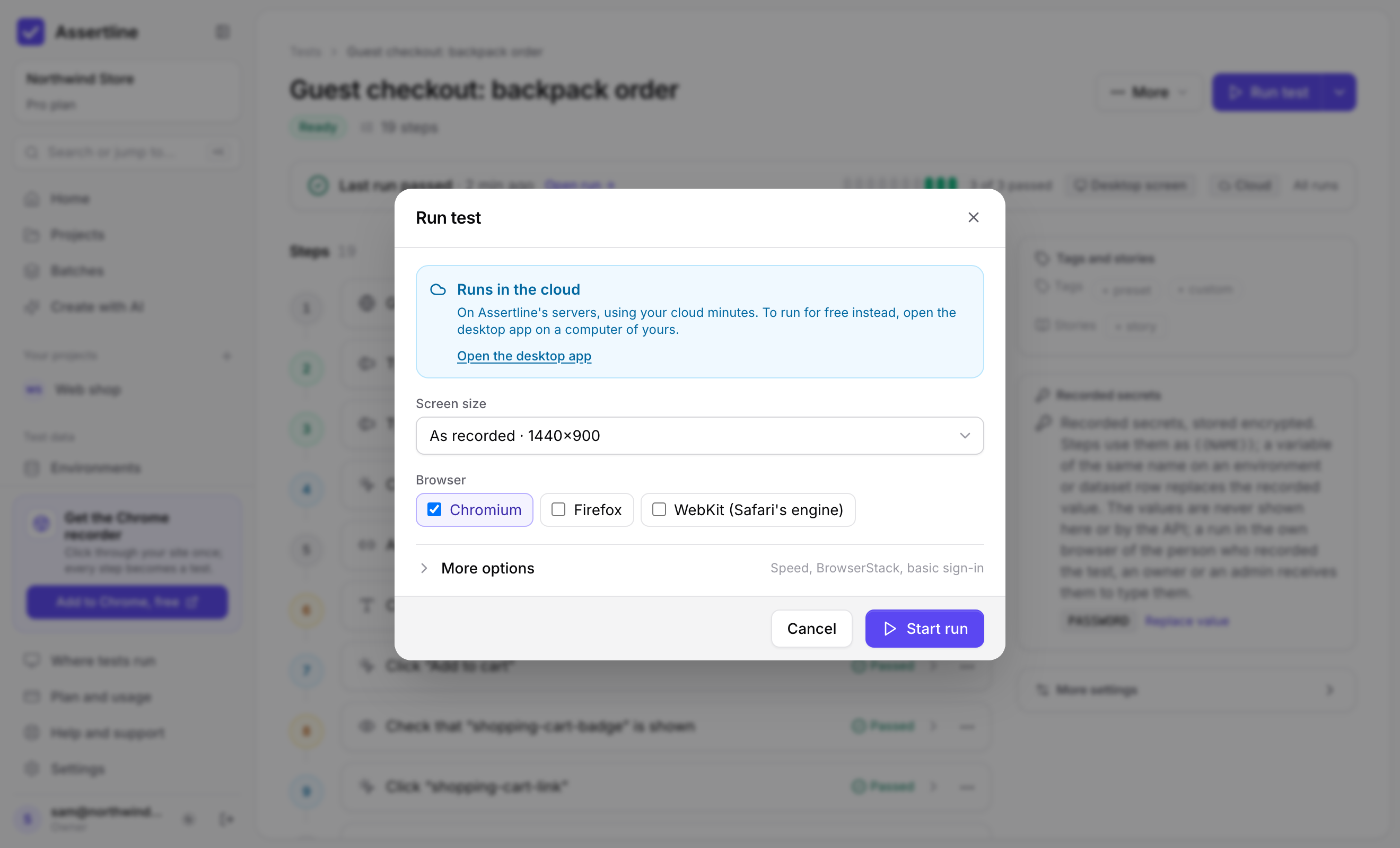
To run several tests in one go, give them a label such as "checkout" and run every test with that label. That is a batch, and it gets one overall result.
Step 5: read the result
Every step of a run is reported with whether it passed, how long it took, the way its element was found, the network calls it caused and a screenshot. When a run fails, it shows which step failed and why, so nobody has to run it again just to find out.
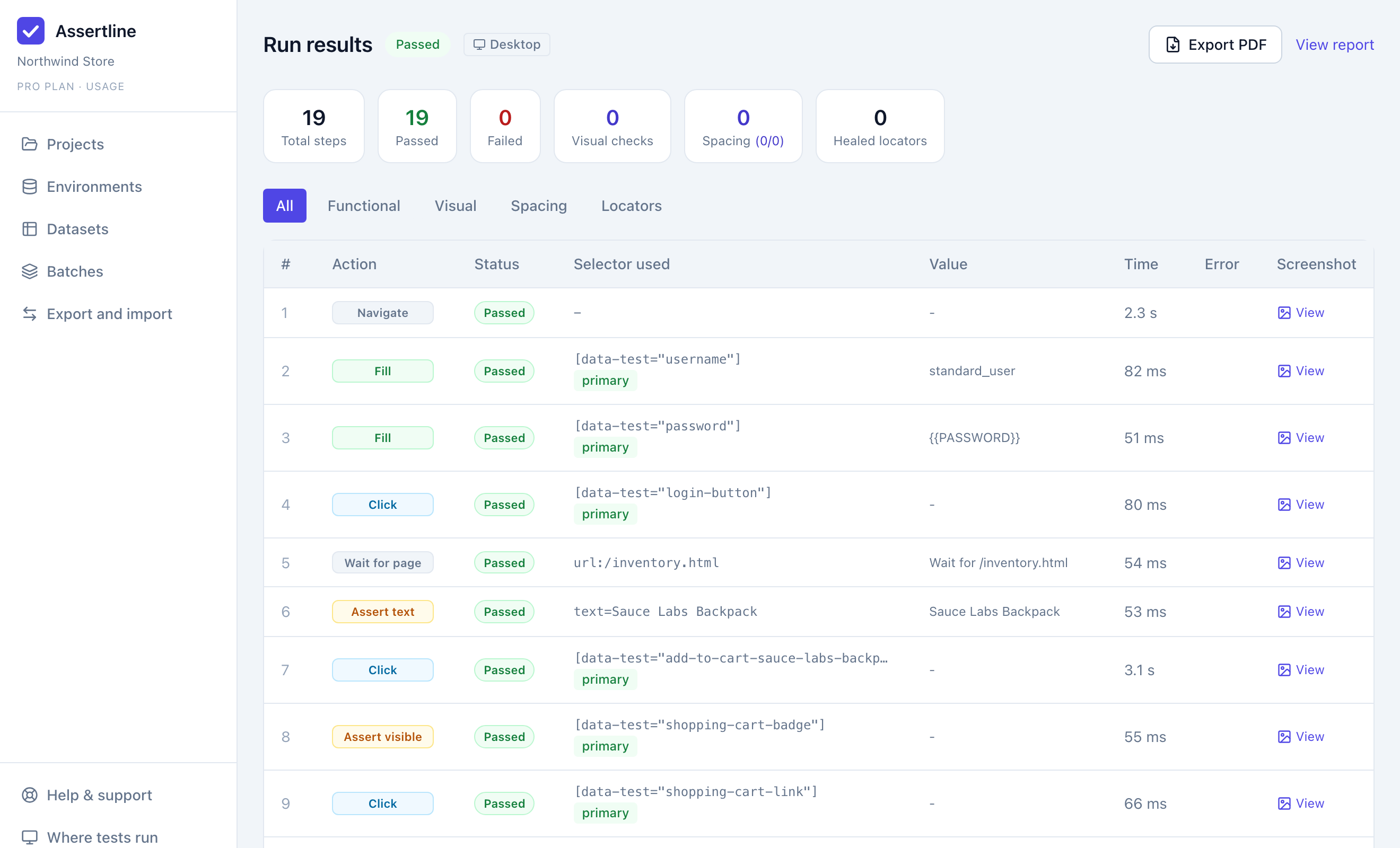
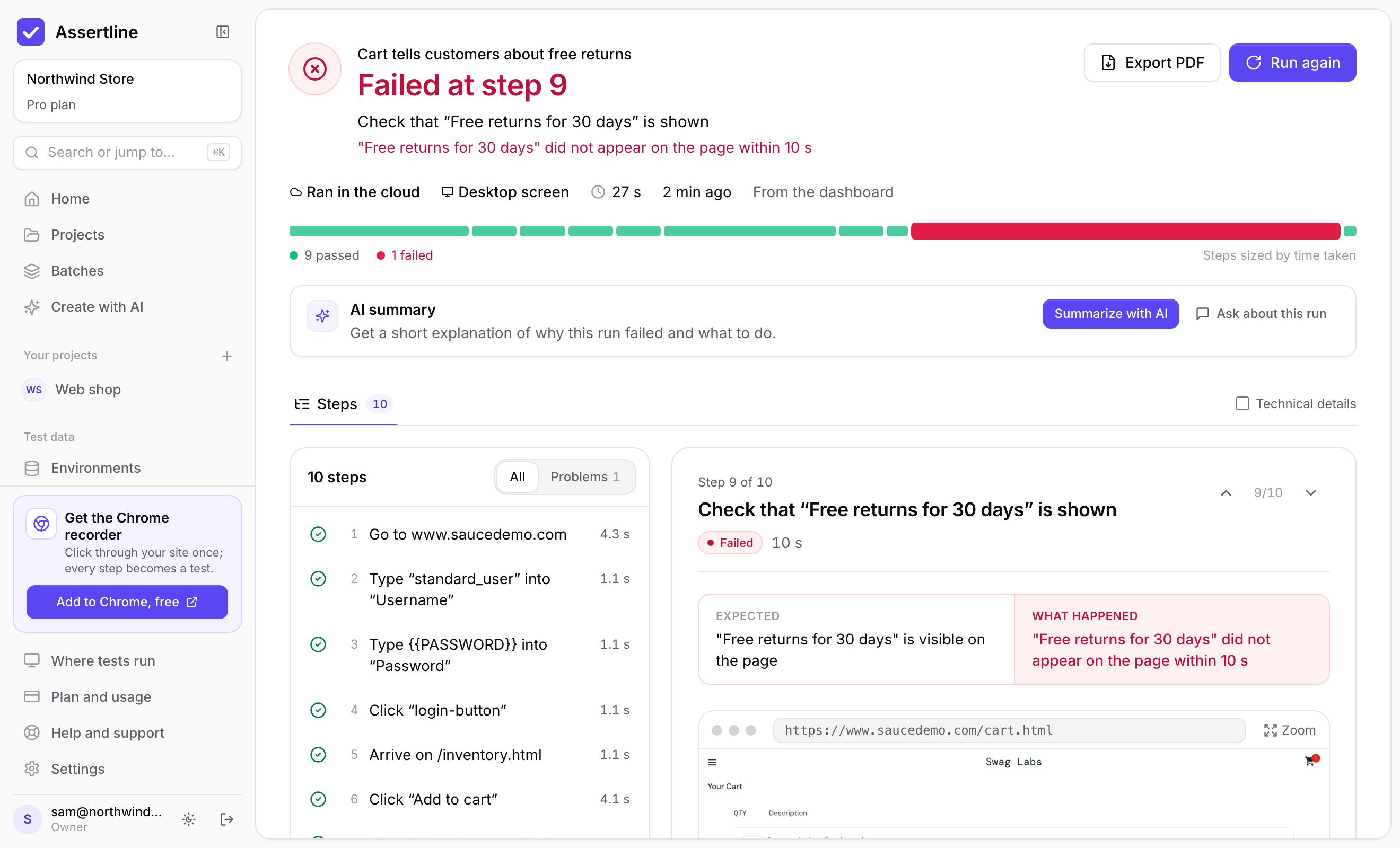
- A failure in plain words. On every plan you can press "Summarize with AI" on a run. It uses your own OpenAI key and compares the run with the last one that passed.
- Blocked is never a pass. Some websites refuse automated browsers. Assertline reports that as "blocked" and never as passed. Such a test can run in your own Chrome or with the desktop app.
- Told when it fails. On Pro, finished runs can be posted to a Slack channel. There are no email alerts yet.
How to keep a recorded test passing
Recorded tests have a reputation for breaking when the site changes. Most of that comes from finding each button in one way only, so one renamed class turns the test red.
- Several ways to find each element. Assertline remembers up to seven ways to find each button and field. If one stops working it uses another, and the results page tells you it did.
- Change a step instead of recording again. In the dashboard you can remove steps, change their order and change the details of a step. For bigger changes it is usually quicker to record the journey again.
- One test, several sites. An environment holds the values that differ between, say, staging and production, so the same test runs against both.
- A real failure is the test doing its job. If a button was removed, the test fails and shows which step. Nothing can or should hide that.
What a recorded test cannot do
- Pass a "prove you are human" puzzle (captcha).
- Use one-time codes sent by text message or email, because a code only works once.
- Upload your real file again. When a test repeats an upload, it uses a stand-in file with the same name.
- Check a design or a spacing inside an embedded frame. Ordinary steps and checks inside frames are recorded.
- Test mobile apps or desktop programs. It tests websites.
The full list is in the questions and answers. Coming from another recorder? See how Assertline compares with Selenium IDE, Playwright's codegen and others.
Questions
Do I need to know how to code to record a test?
No. You record a test by using your website, and you add checks by pointing at the page. Reading the result does not need code either.
Is recording a test free?
Yes. The recorder is free, and the Free plan has 2 editors, 2 projects, unlimited tests and unlimited runs on your own computer. No card is needed.
Can a recorded test sign in to my site?
Yes. Sign in while you record, and the test signs in the same way each time it runs. The password you typed is stored encrypted and is never shown again. Use a test account for this, not your personal one.
Can I record a test for a site that is not public yet?
Yes. Run the test in your own Chrome or with the desktop app, and it reaches whatever your computer can reach, including a private or internal website. Tests that run on our computers can only reach public websites.
What happens to a recorded test when my website changes?
Small changes are usually fine, because several ways to find each button and field are remembered. If a step really cannot be done any more, the test fails and shows you which step.
Record your first test now
The recorder and the Free plan cost nothing, and the first test takes a few minutes.